
In the quirky world of Worming From Home, the printer is not just a mundane office tool—it's a gateway to some of the game's more inventive interactions. From sending signed contracts to your boss to the peculiar task of scanning a frog, learning how to properly handle the printer can make your work-from-home experience surprisingly memorable.
Before you can start making use of the printer’s unique capabilities, you need to unlock it by purchasing the L-shaped desk for $1,000. This essential furniture upgrade activates the printer for your use.
Once the desk is in place, you’ll have access to all printer functions, including both printing and scanning, which open up new gameplay opportunities and achievements.
How to Print Using the Printer
The printer controls are conveniently located on the top left side of the machine. Here, you’ll find two green buttons labeled Scan and Print, along with left and right arrows to cycle through the documents available for printing.
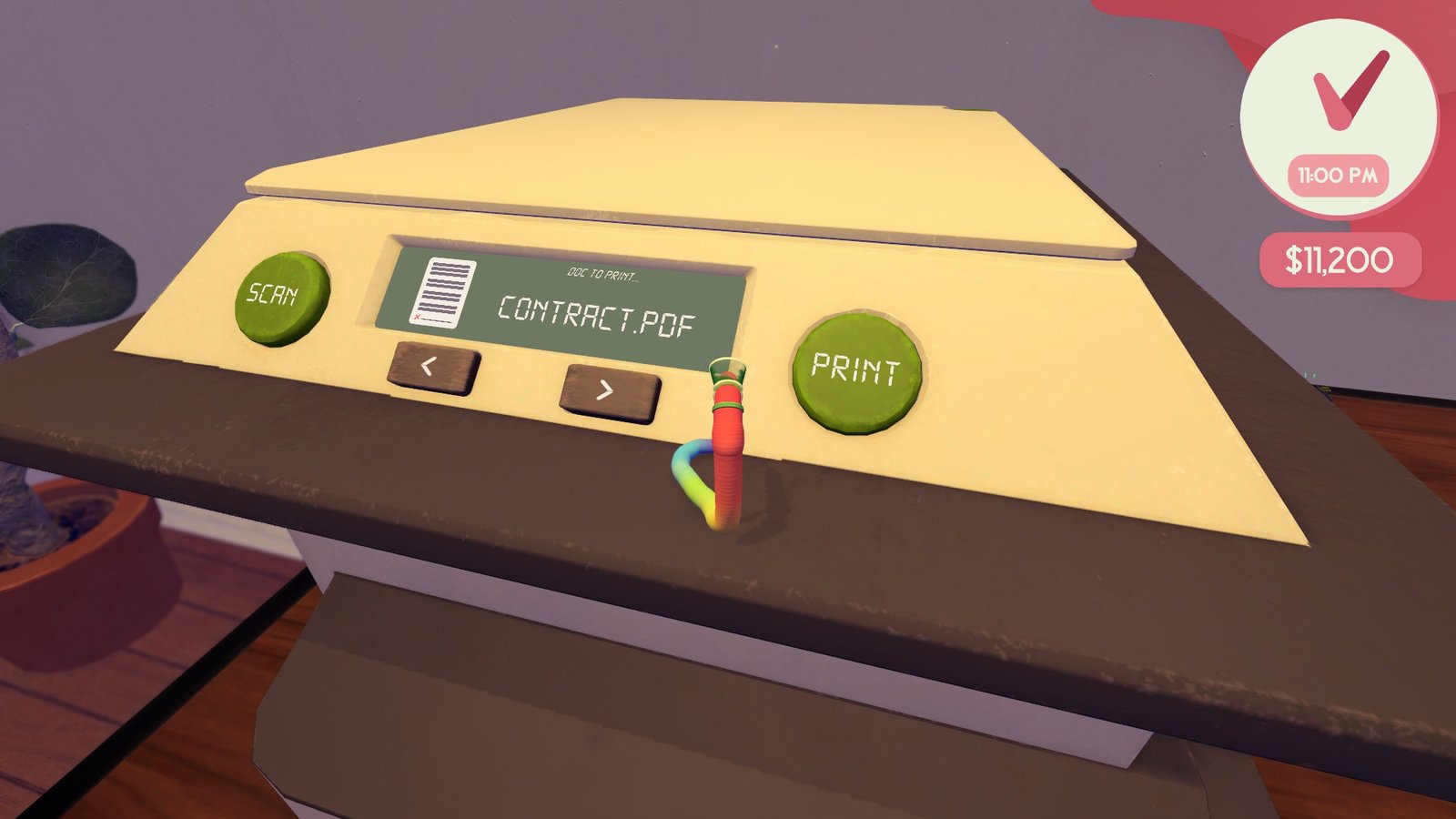
To print a document, follow these steps to ensure you get the correct page every time:
- Focus on the printer controls.
- Use the left or right arrows to pick the document you want.
- Press the green Print button.
- The printer will then print the selected page.
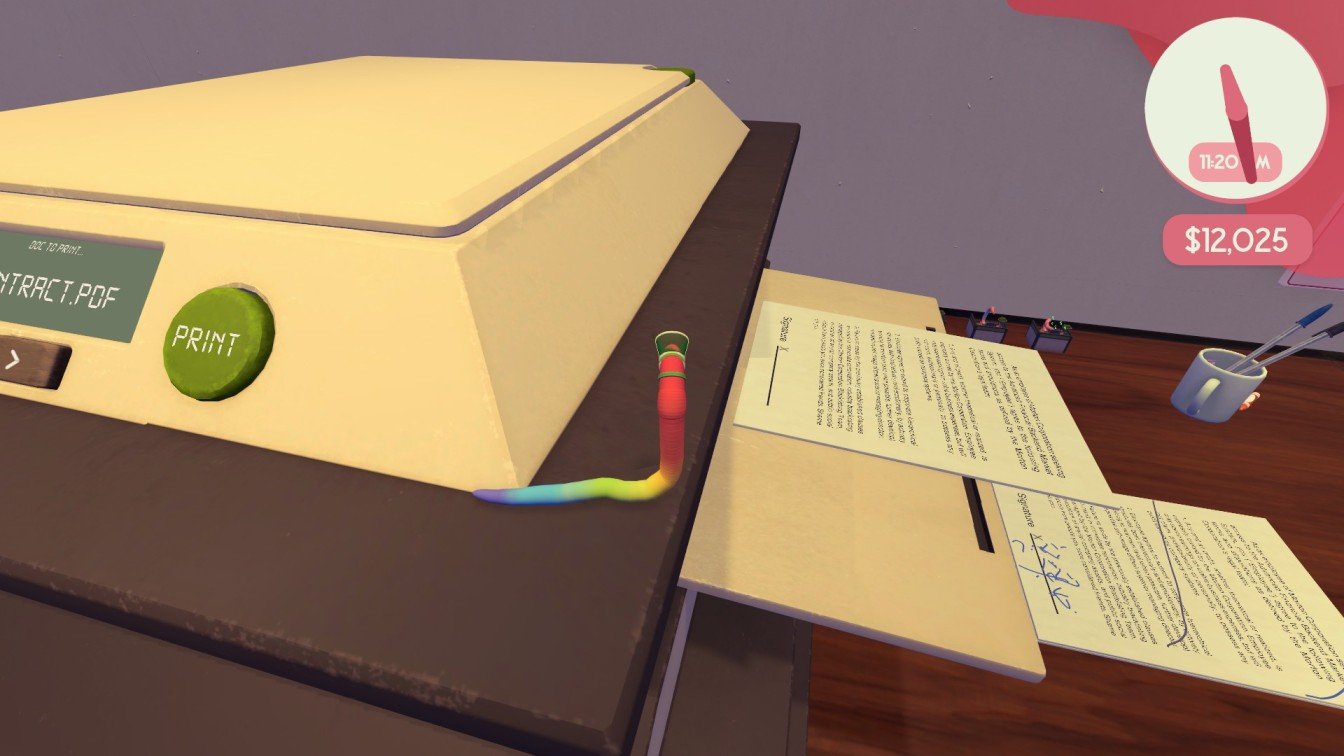
After printing, simply pick up your page and use it as required within the game’s tasks and interactions.
How to Scan in Worming From Home
Scanning takes a bit more preparation compared to printing. The first step involves opening the scanner lid to place the item you want to scan.
1. Open the Scanner
Climb to the very top of the printer and press the green button located at the corner of the scanner lid. This action lifts the lid and allows you access to the scanning surface.
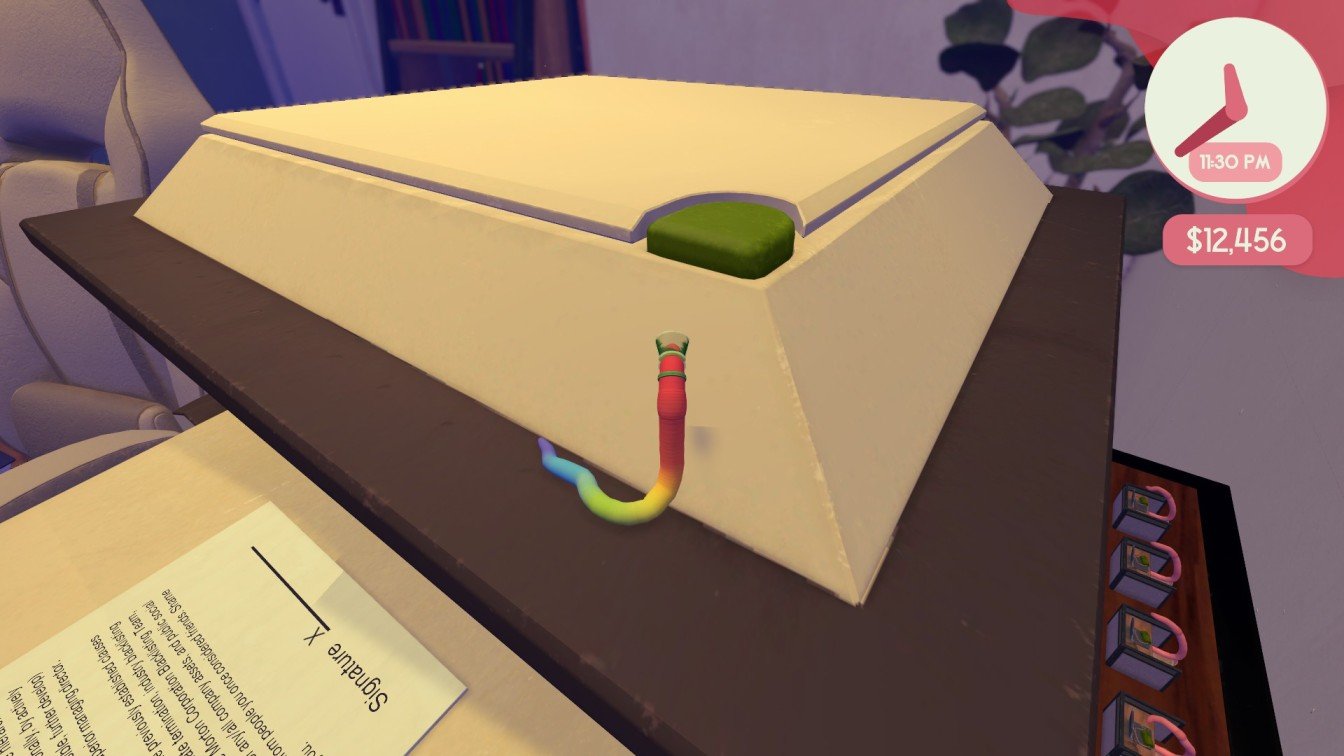
With the scanner lid open, you can now place the item you want to digitize onto the glass surface.
2. Place the Page or Item
Drag the document, photo, or object carefully onto the scanner bed. Ensuring proper placement helps the scanner capture a clean, legible image.
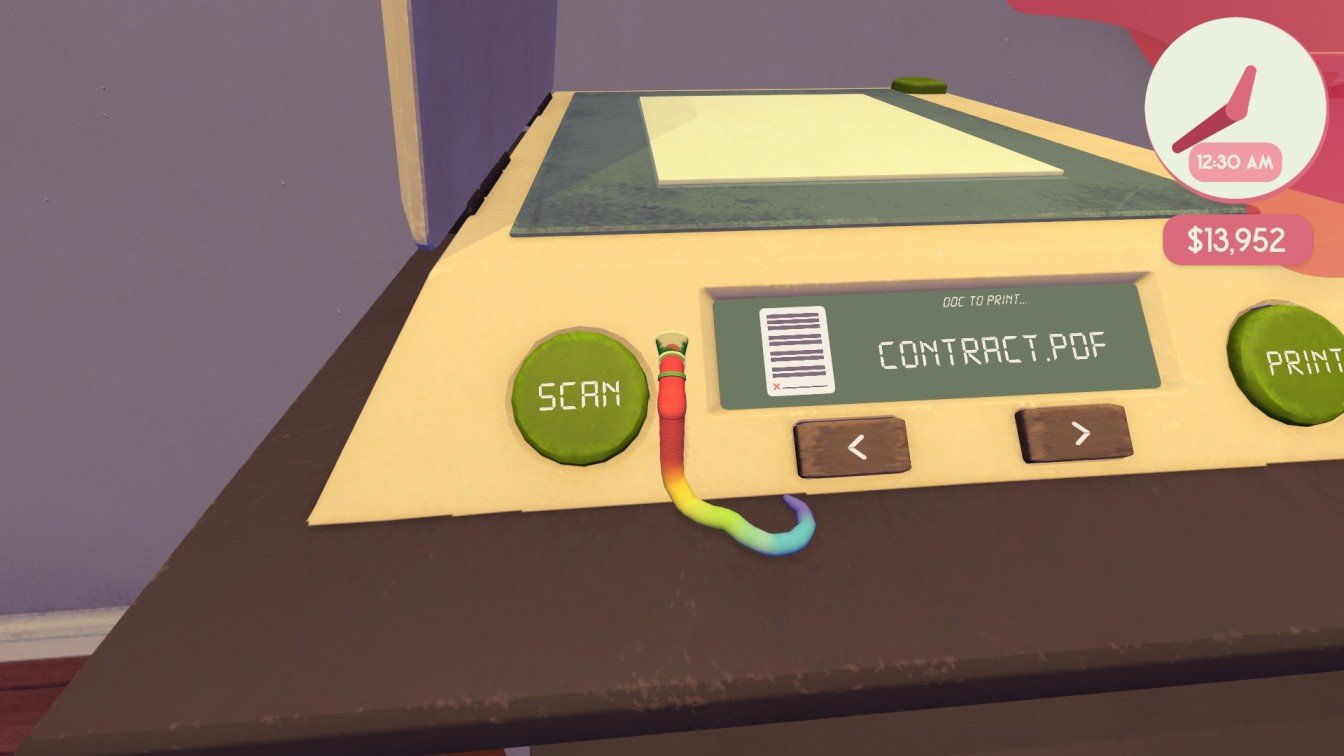
Check to confirm the item is positioned correctly before moving on to scanning.
3. Press Scan
Once your item is set, hit the Scan button. The scanned image or page will promptly appear on your computer screen, giving you immediate feedback.
This step wraps up the scanning process, allowing you to incorporate digital copies into your gameplay seamlessly.
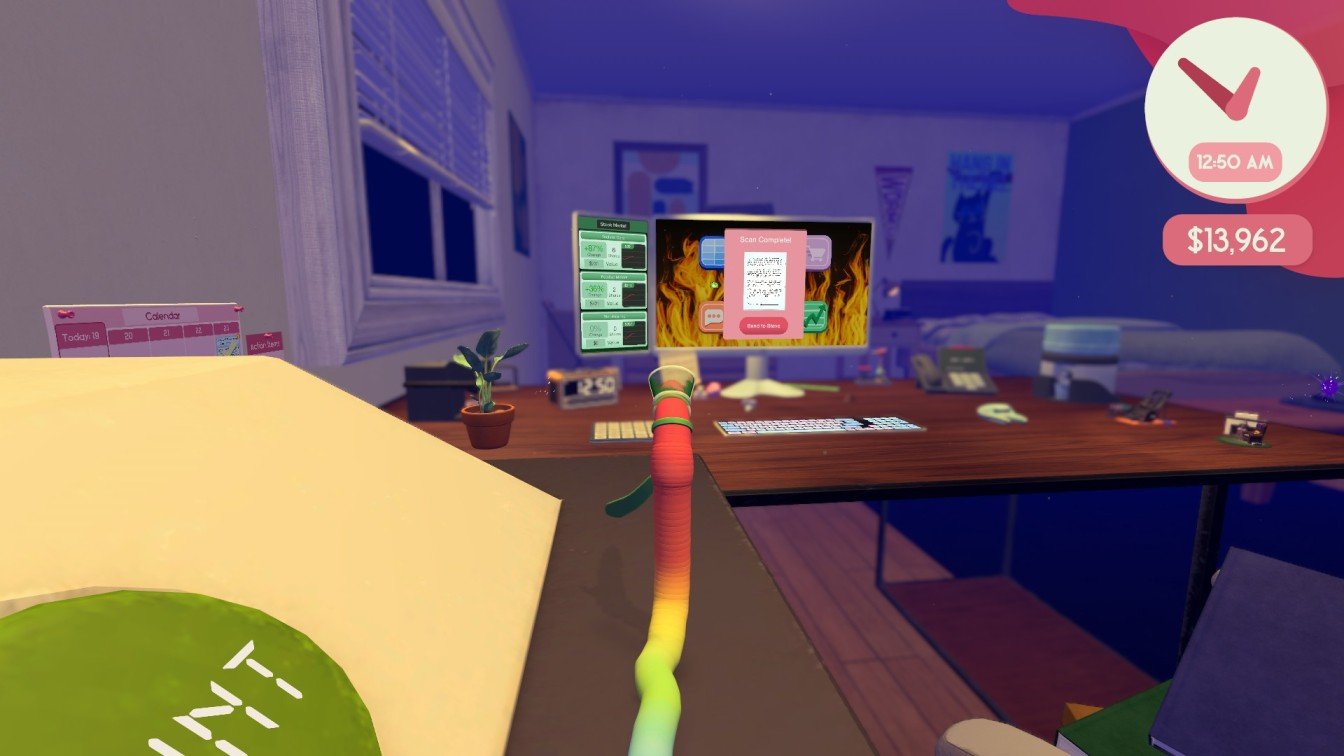
By mastering these printer functions, you’ll be able to tackle various in-game challenges efficiently. Printing and scanning are key for completing assignments and unlocking further game content.
Achievements You Can Complete With the Printer
The printer isn’t just functional—it also plays a pivotal role in earning some of the more creative achievements in Worming From Home.
- New Friend — Stand on the printer lid and press the green button to launch yourself toward the ladybug.
- Kafkaesque — Print a contract, sign it, place it under the scanner lid, and send it to Steve.
- Check Out This Cool Worm — Scan yourself and send your photo to Steve.
- Is This Even Legal? — Print a $1,000 bill.
- Scan a Frog — Place a frog on the printer’s scanner and scan it.
If you aim to unlock all printer-related achievements, further exploration and experimentation with these tasks will reveal how each one unfolds in this quirky work-from-home adventure.