- How to Create Custom Blueprints in Car Park Capital
- Save Your Building as a Blueprint
- Reopen a Saved Scenario
- Find Your Saved Blueprint Files
- Add Custom Blueprints to the Normal Game
- Copy Your Blueprint into an Existing Folder
- Place Custom Blueprints in Your City
- Important Things to Know About Custom Blueprints
- Important Things to Know About Custom Blueprints
- Do You Need to Create a New Scenario Every Time?
- Will Game Updates Delete Custom Blueprints?
- Can You Use Buildings or Components You Haven’t Unlocked?
Car Park Capital gives players the freedom to design unique structures in the Scenario Editor, and these creations aren’t just limited to custom scenarios. You can bring your personalized buildings, parks, and garages into your main city game by handling the blueprint files directly.
This approach lets you reuse your favorite parking garages, office complexes, or ornamental parks as many times as you like without relying on mods or third-party tools. It’s a straightforward way to enrich your cityscape with custom content.
How to Create Custom Blueprints in Car Park Capital
Begin by launching the Scenario Editor and constructing the building or structure you want to save for later use.
- Start Car Park Capital and select New Game.
- Choose Custom Scenarios.
- Pick Create Your Own Scenario.
- Click Start Scenario Editor and enter a name for the scenario.
- Use the editor tools to build the desired structure.
After completing your design, the next step is to save it as a blueprint so you can reuse it outside the editor.
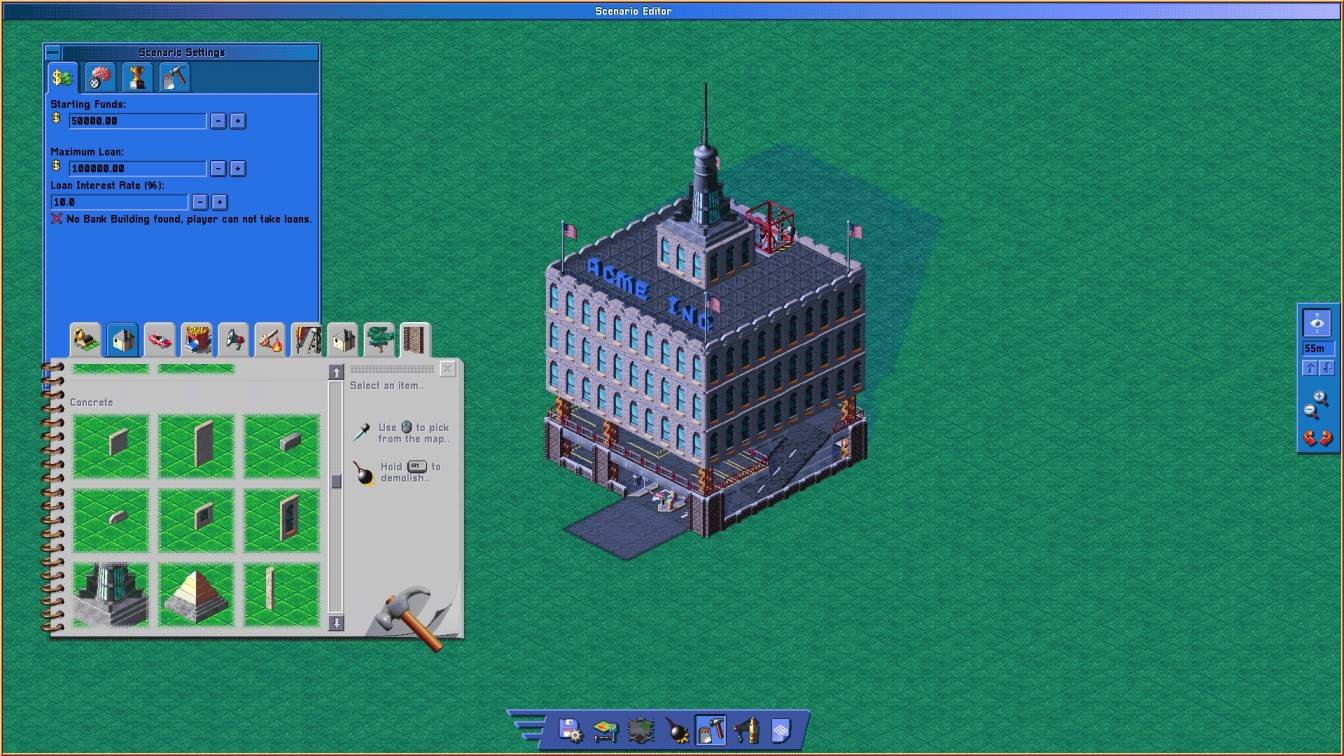
Save Your Building as a Blueprint
- Open the Building Plans menu.
- Select Create.
- Highlight the area covering your structure.
- Give your blueprint a clear filename and save it.
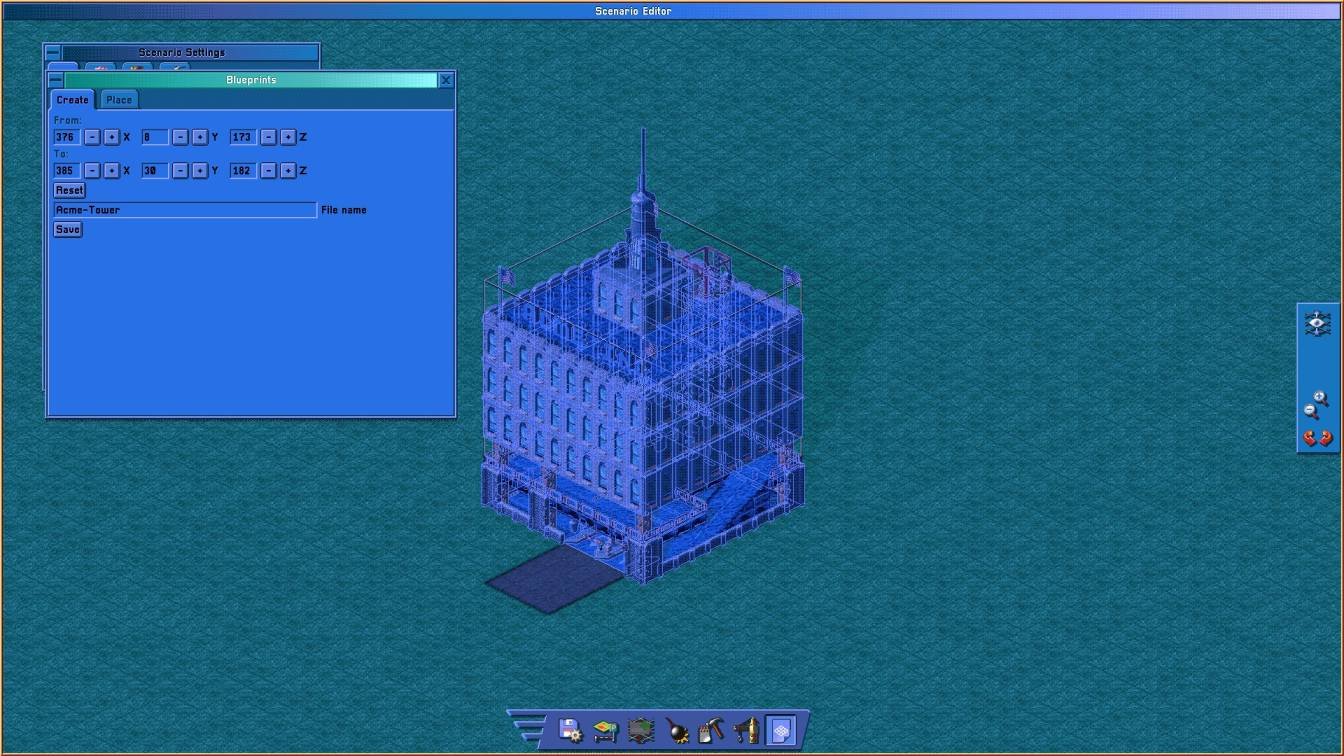
Repeat this process to archive multiple buildings, from simple parking structures to full complexes. Naming each blueprint distinctly will save you from hunting later.
Keep in mind that saving a blueprint only archives the selected structure. To preserve all editing progress, save the entire scenario separately within the editor.
Use Save or Save and Go to Menu in the Scenario Editor to secure your work.
Reopen a Saved Scenario
You don’t have to create a new scenario whenever you want to make another blueprint.
- Start New Game.
- Go to Custom Scenarios.
- Select your saved scenario.
- Choose Open in Scenario Editor to continue editing or add more blueprints.
This way, you don’t need to start from scratch each time you want to create new blueprints.
Find Your Saved Blueprint Files
The blueprints you save generate .cpbp files. These live in the game’s installation directory within your saves.
To locate these easily, open your Steam Library, right-click Car Park Capital, and pick Manage → Browse Local Files.
- Open your Steam Library.
- Right-click Car Park Capital.
- Select Manage → Browse Local Files.
Inside the install folder, go to:
Car Park Capital\saves\blueprints
Here, each blueprint file is saved as [YourBlueprintName].cpbp. Keep these files backed up if you want to reuse or share them.
Keep these original files safe. You’ll need to copy them into another folder to make them available in your regular game.
Add Custom Blueprints to the Normal Game
Add Custom Blueprints to the Normal Game
Custom blueprints won’t appear automatically in your regular city mode. You need to copy their files to a different folder the game uses for default building placement.
Navigate to:
Car Park Capital\assets\blueprints
Within this folder, you will see subfolders categorized by building size and type:
small_parking_garages– For compact parking structures.medium_parking_garages– For mid-sized garages.large_parking_garages– For larger constructions.scenario_editor– Reserved for editor blueprints.
Copy Your Blueprint into an Existing Folder
- Return to the blueprints folder under
saves\blueprints. - Find the desired
.cpbpblueprint file. - Copy (don’t move) that file into one of the three parking garage folders inside
assets\blueprintsaccording to its size.
For example, you could copy your file to:
For instance, placing MyBuilding.cpbp into:
Car Park Capital\assets\blueprints\large_parking_garages
Organizing blueprints this way helps you keep track of your custom structures as your collection expands.
Keep the original files intact in your saves folder in case you need to restore or reuse them later.
Place Custom Blueprints in Your City
Place Custom Blueprints in Your City
- Restart Car Park Capital to refresh the blueprint directories.
- Load your main city save.
- Open the Blueprints → Place menu.
- Select the category you copied your blueprint into.
- Find your custom building and place it anywhere in your city.
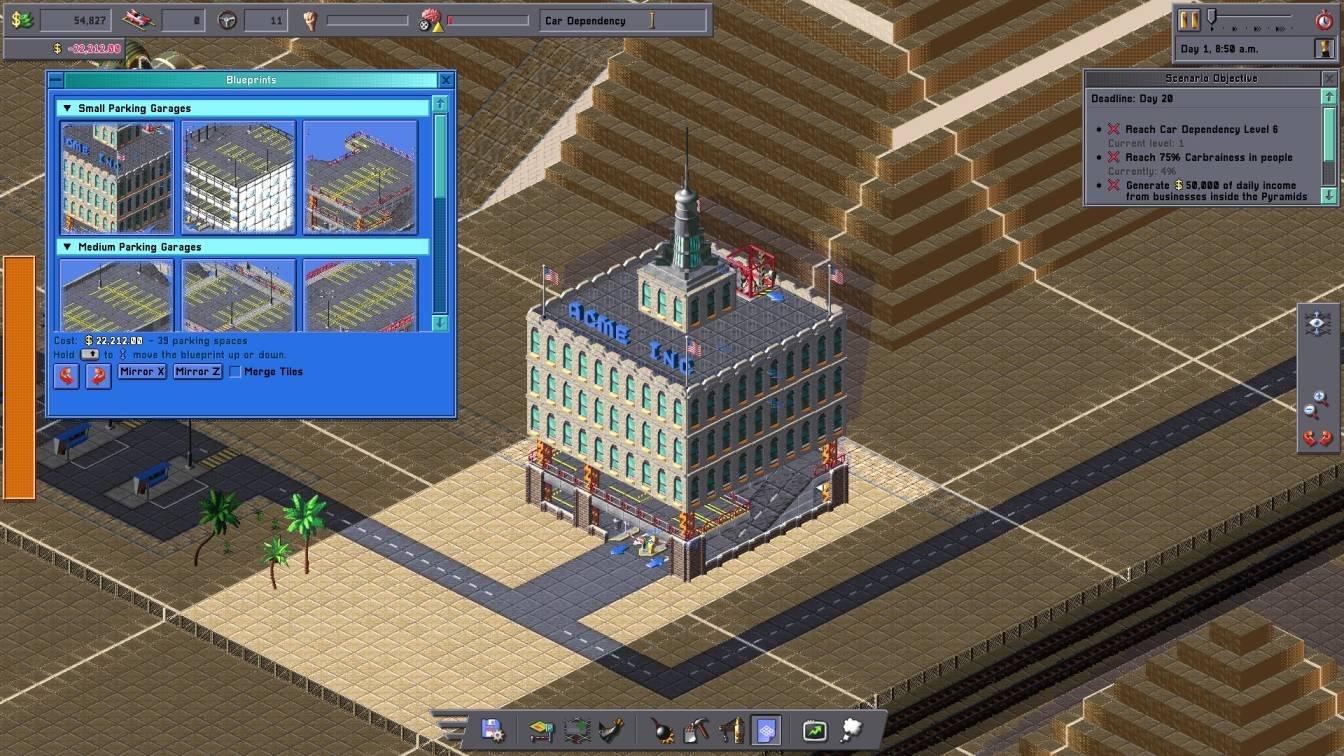
Your new structure will appear alongside the base game options, letting you deploy it repeatedly without reopening the Scenario Editor.
Important Things to Know About Custom Blueprints
Important Things to Know About Custom Blueprints
You can’t create new blueprint categories by adding folders. The game recognizes only the three existing parking garage folders in assets\blueprints.
Stick to using these folders to avoid missing custom content.
Do You Need to Create a New Scenario Every Time?
You don’t need to start a fresh scenario every time you want a new blueprint. Open your saved scenario through Custom Scenarios and continue adding blueprints in the Scenario Editor seamlessly.
Will Game Updates Delete Custom Blueprints?
Be aware that updates or Steam’s file verification can overwrite or remove your copied blueprint files inside the assets folder.
Backing up your .cpbp files outside the game directory is wise so you can restore your custom structures if needed.
Can You Use Buildings or Components You Haven’t Unlocked?
This method might let you place buildings or components usually locked behind progression, like a plastic tree factory before reaching the necessary car dependency level.
However, this could be unintended and subject to change in future patches.
However, this behavior may be unintended, and a future game update could change or restrict it.