


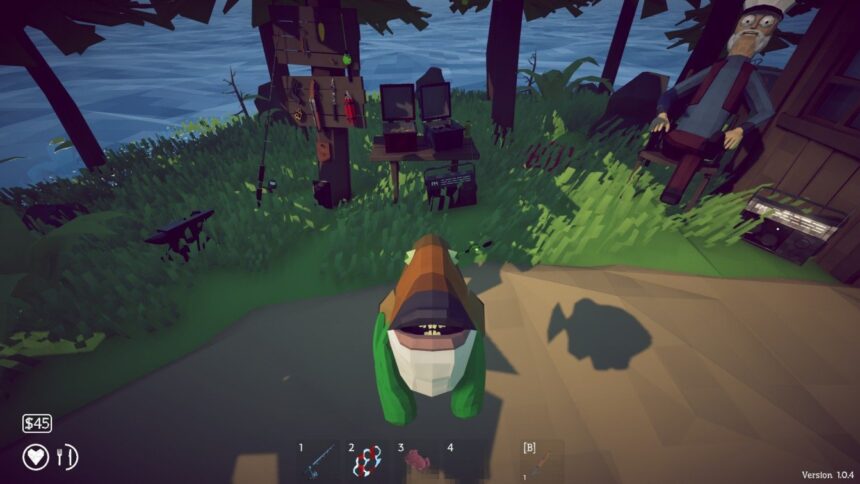
- Before diving into editing, back up your save file to avoid any unintended losses. The game stores save data in editable text files, making it accessible but sensitive to formatting errors.
- Open File Explorer and navigate to the save directory located at: C:\Users\%USERNAME%\AppData\LocalLow\Dazed Games\How to Fish\Saves Within this folder, identify the .txt file corresponding to the save you wish to modify.
- Use a plain text editor like Notepad to open your save file. The key to successful editing is keeping the entire save content on one single line . Introducing line breaks or formatting the JSON can corrupt the save, rendering it unusable.
- To add a new item, insert a new inventory entry right after the last item in the file. Use the template below and replace the asterisk with the desired ItemID : {"Exists":true,"InventorySlot":0,"ItemID":*,"Cookness":0.0,"BettingMultiplier":1.0,"Weight":1.0,"KillScoreMultiplier":1.0,"IsDripCreature":false,"SkinIndex":0,"Sharpness":0,"Sight":0,"BarrelAttachment":0,"AmmoType":0,"ExtendedMag":false,"LaserSight":false} Make sure to increment the InventorySlot number to avoid slot conflicts; if the last item uses slot 5, the new one should be slot 6. Also, don’t forget to add a comma before the new entry to maintain JSON structure.
- Alternatively, you can modify an existing item by locating its "ItemID" value and replacing it with the new item’s ID. This method is effective if you want to swap items without expanding your inventory.
- Item Values You Can Edit
- Below is a comprehensive list of valid ItemIDs you can use. Using IDs not on this list risks your items vanishing or corrupting your save file, so stick to these known values.
- The following IDs cover common fish and creatures from 0 to 42: ID Item 0 Angelfish 1 Anglerfish 2 Bass 3 Blobfish 4 Bluegill 5 Albatross 6 Blueshark 7 Bowhead Whale 8 The Old Pike 9 Giant Piranha 10 Goblin Shark 11 Mutated Bowhead Whale 12 Pufferfish 13 Spidercrab 14 Sunfish 15 Tuna 16 Bowlfish 17 Catfish 18 Clam 19 Clownfish 20 Cod 21 Brown Crab 22 Dripper 23 Eel 24 Flying Fish 25 Footsnail 26 Gar 27 Goby 28 Goldfish 29 Halibut 32 Lobster 33 Mackerel 34 Needlefish 35 Oarfish 36 Parrotfish 37 Perch 38 Pike 39 Piranha 40 Red Snapper 41 Salmon 42 Sea Urchin Albatross, Giant Piranha, Mutated Bowhead Whale, Pufferfish, and Spidercrab have special behavior and can explode when equipped, so be cautious.
- IDs 43 through 85 cover more fish, birds, weapons, and miscellaneous items: ID Item 43 Seagull 44 Seahorse 45 Sengarat 46 Shrimp 47 Stonefish 48 Superdwarf Fish 49 Tigerfish 50 Triggerfish 51 Voxelfish 52 Yellow Boxfish 54 Assault Rifle 55 Badball 56 Beer 57 Brass Knuckles 58 Brass Knuckles (Debug Clone, unusable) 59 Crab-Fishing Rod 60 Dynamite 61 Fishing Rod 62 Disc 63 Knife 64 Knife (Debug Clone, unusable) 65 Radar 66 Pistol 67 Radio 68 Shotgun 69 SMG 70 Sniper Rifle 71 Snowball (no function) 72 Snowball 2 (no function) 73 Snowball 3 (no function) 74 Albatross Head 75 Giant Piranha Skeleton 76 Pufferfish Fin 77 Spidercrab Shell 78 Whale Fin 79 Rock Crab 82 Bing Bong 83 Bing Bong 84 Meat Chunk (1k worth) 85 Meat Chunk (25 worth) Keep in mind IDs 58 and 64 are debug clones and unusable. The three Snowball IDs also appear without any known function.
- Example: Getting a Specific Fish
- When editing, follow these crucial tips: always backup your save, maintain a single-line save file, only use verified ItemIDs, place commas correctly between entries, avoid reusing slot numbers, and beware of extreme values that might destabilize the game. Note that some items depend on other save variables or random drops, so they may not work as expected when manually added. The Item ID system in How to Fish offers plenty of room for creativity and customization, but it requires careful handling to prevent save corruption or lost progress.
The aquatic world of How to Fish invites players to explore, catch, and collect an impressive variety of fish and weapons. Sometimes, hunting for a specific item can drag on longer than you’d like, pushing players to seek quicker ways to acquire their favorites. Editing your save file to add particular item IDs is a practical method to customize your inventory instantly without the usual grind.
Before diving into editing, back up your save file to avoid any unintended losses. The game stores save data in editable text files, making it accessible but sensitive to formatting errors.
It is recommended to make a backup of your save file before editing anything. In case you mess with the save file, your game should not be ruined.
Open File Explorer and navigate to the save directory located at: C:\Users\%USERNAME%\AppData\LocalLow\Dazed Games\How to Fish\Saves Within this folder, identify the .txt file corresponding to the save you wish to modify.
First of all, Open File Explorer and go to:
C:\Users\%USERNAME%\AppData\LocalLow\Dazed Games\How to Fish\Saves
You can also copy and paste this path directly into the File Explorer address bar.
Inside the folder, find the .txt file that has the same name as the save you want to edit.
Use a plain text editor like Notepad to open your save file. The key to successful editing is keeping the entire save content on one single line . Introducing line breaks or formatting the JSON can corrupt the save, rendering it unusable.
Open the save file with a text editor such as Notepad.
The save data needs to remain on one single line. Do not add line breaks or format the JSON.
If you accidentally add a line break, the game may no longer be able to read the save.
To add a new item, insert a new inventory entry right after the last item in the file. Use the template below and replace the asterisk with the desired ItemID : {"Exists":true,"InventorySlot":0,"ItemID":*,"Cookness":0.0,"BettingMultiplier":1.0,"Weight":1.0,"KillScoreMultiplier":1.0,"IsDripCreature":false,"SkinIndex":0,"Sharpness":0,"Sight":0,"BarrelAttachment":0,"AmmoType":0,"ExtendedMag":false,"LaserSight":false} Make sure to increment the InventorySlot number to avoid slot conflicts; if the last item uses slot 5, the new one should be slot 6. Also, don’t forget to add a comma before the new entry to maintain JSON structure.
You can add an item by placing a new inventory entry after the final item in the save file.
Use this entry:
{"Exists":true,"InventorySlot":0,"ItemID":*,"Cookness":0.0,"BettingMultiplier":1.0,"Weight":1.0,"KillScoreMultiplier":1.0,"IsDripCreature":false,"SkinIndex":0,"Sharpness":0,"Sight":0,"BarrelAttachment":0,"AmmoType":0,"ExtendedMag":false,"LaserSight":false}
Replace * with the ItemID of the fish or weapon that you want in your inventory. You can find all item IDs below.
You also need to increase the InventorySlot number so it does not use your slot that already exists.
For example, if your last item uses InventorySlot:5, use InventorySlot:6 for the new item.
Important: Make sure to put a comma before the new inventory entry when adding it after an existing item.
Alternatively, you can modify an existing item by locating its "ItemID" value and replacing it with the new item’s ID. This method is effective if you want to swap items without expanding your inventory.
You do not have to add a new entry if you already have an item that you want to replace.
Find its “ItemID”:… and replace the number with the ID of the item you want.
This is usually the easier option if you already have an inventory slot available.
Item Values You Can Edit
Beyond the ItemID, the save file contains numerous properties you can tweak, such as Cookness (how cooked the item is), Weight, Sharpness for melee weapons, and attachments like Sight or LaserSight. Manipulating these can enhance or alter item attributes, though excessive or out-of-range values may cause glitches.
| Value | What it does |
|---|---|
Exists |
Determines if the item exists (true/false) |
InventorySlot |
Inventory position, from 0–9 |
ItemID |
Determines which item you receive |
Cookness |
Controls how cooked the item is |
BettingMultiplier |
Multiplier gained through gambling |
Weight |
Changes the item’s weight |
KillScoreMultiplier |
Multiplier gained from fancy kills |
IsDripCreature |
Turns the item into a special DRIP creature |
SkinIndex |
Changes the item’s skin |
Sharpness |
Melee weapon damage, from 0–15 |
Sight |
Controls the sight attachment |
BarrelAttachment |
Controls the barrel attachment |
AmmoType |
Controls ranged weapon damage |
ExtendedMag |
Enables the extended magazine |
LaserSight |
Enables the laser sight |
For example, a fish with a Weight of 10 equates to 1 kg, but setting values too high might trigger weird behaviors or even cause the game to crash due to integer overflow. Similarly, setting IsDripCreature to true bestows a special DRIP attribute on your fish.
For example, setting a fish’s Weight to 10 makes it weigh 1 kg. Very large values can produce strange results, including integer overflow.
You can also set “IsDripCreature”:true on a fish to give it the DRIP property.
Not every value will work as you are expecting, though. For example, if you set AmmoType above its normal range, then it will not make your weapons deal massive damage. Values outside 0–12 can instead make the weapon deal no damage.
Likewise, changing ExtendedMag to true on a shotgun has no useful effect.
Below is a comprehensive list of valid ItemIDs you can use. Using IDs not on this list risks your items vanishing or corrupting your save file, so stick to these known values.
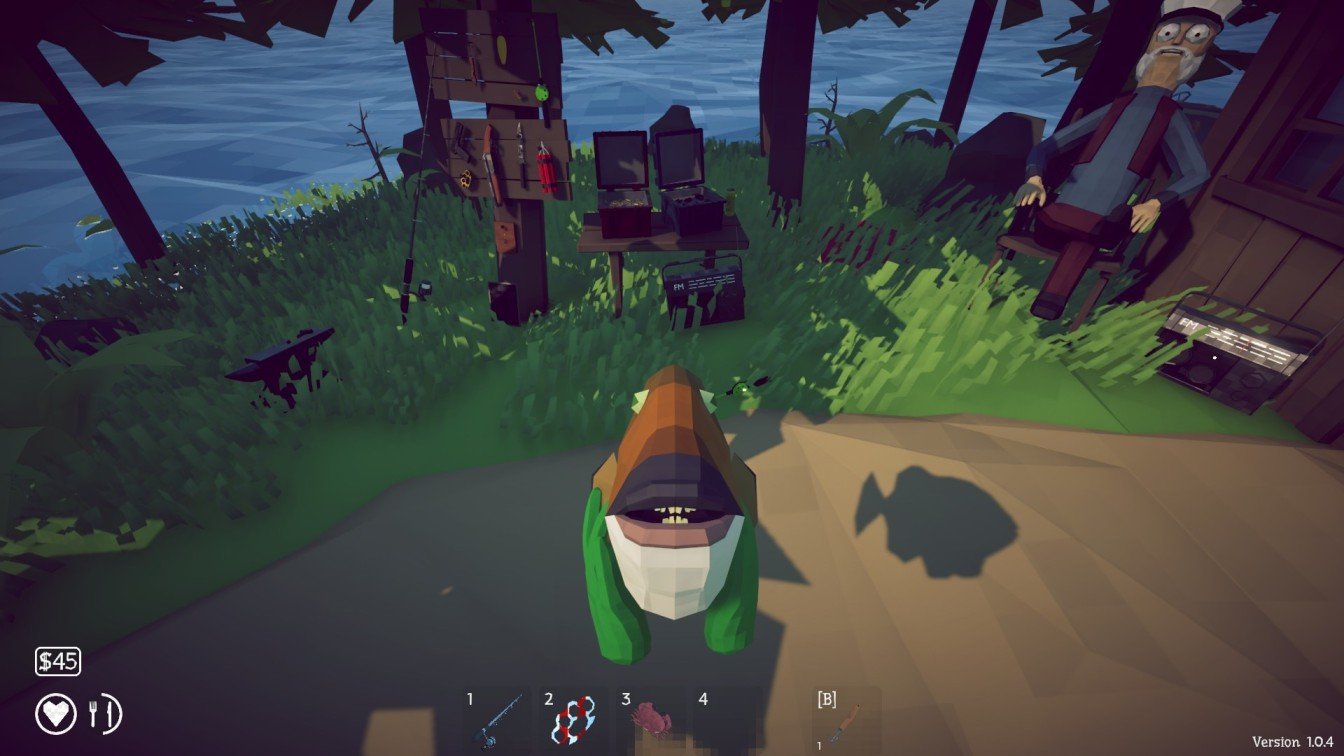
The following IDs are taken from the known save-file item list.
Do not use IDs that are not listed below. Unknown IDs can cause an item to disappear or may make the save file unusable.
The following IDs cover common fish and creatures from 0 to 42: ID Item 0 Angelfish 1 Anglerfish 2 Bass 3 Blobfish 4 Bluegill 5 Albatross 6 Blueshark 7 Bowhead Whale 8 The Old Pike 9 Giant Piranha 10 Goblin Shark 11 Mutated Bowhead Whale 12 Pufferfish 13 Spidercrab 14 Sunfish 15 Tuna 16 Bowlfish 17 Catfish 18 Clam 19 Clownfish 20 Cod 21 Brown Crab 22 Dripper 23 Eel 24 Flying Fish 25 Footsnail 26 Gar 27 Goby 28 Goldfish 29 Halibut 32 Lobster 33 Mackerel 34 Needlefish 35 Oarfish 36 Parrotfish 37 Perch 38 Pike 39 Piranha 40 Red Snapper 41 Salmon 42 Sea Urchin Albatross, Giant Piranha, Mutated Bowhead Whale, Pufferfish, and Spidercrab have special behavior and can explode when equipped, so be cautious.
| ID | Item |
|---|---|
| 0 | Angelfish |
| 1 | Anglerfish |
| 2 | Bass |
| 3 | Blobfish |
| 4 | Bluegill |
| 5 | Albatross |
| 6 | Blueshark |
| 7 | Bowhead Whale |
| 8 | The Old Pike |
| 9 | Giant Piranha |
| 10 | Goblin Shark |
| 11 | Mutated Bowhead Whale |
| 12 | Pufferfish |
| 13 | Spidercrab |
| 14 | Sunfish |
| 15 | Tuna |
| 16 | Bowlfish |
| 17 | Catfish |
| 18 | Clam |
| 19 | Clownfish |
| 20 | Cod |
| 21 | Brown Crab |
| 22 | Dripper |
| 23 | Eel |
| 24 | Flying Fish |
| 25 | Footsnail |
| 26 | Gar |
| 27 | Goby |
| 28 | Goldfish |
| 29 | Halibut |
| 32 | Lobster |
| 33 | Mackerel |
| 34 | Needlefish |
| 35 | Oarfish |
| 36 | Parrotfish |
| 37 | Perch |
| 38 | Pike |
| 39 | Piranha |
| 40 | Red Snapper |
| 41 | Salmon |
| 42 | Sea Urchin |
Some creatures have special behavior. Albatross, Giant Piranha, Mutated Bowhead Whale, Pufferfish, and Spidercrab can explode when equipped.
IDs 43 through 85 cover more fish, birds, weapons, and miscellaneous items: ID Item 43 Seagull 44 Seahorse 45 Sengarat 46 Shrimp 47 Stonefish 48 Superdwarf Fish 49 Tigerfish 50 Triggerfish 51 Voxelfish 52 Yellow Boxfish 54 Assault Rifle 55 Badball 56 Beer 57 Brass Knuckles 58 Brass Knuckles (Debug Clone, unusable) 59 Crab-Fishing Rod 60 Dynamite 61 Fishing Rod 62 Disc 63 Knife 64 Knife (Debug Clone, unusable) 65 Radar 66 Pistol 67 Radio 68 Shotgun 69 SMG 70 Sniper Rifle 71 Snowball (no function) 72 Snowball 2 (no function) 73 Snowball 3 (no function) 74 Albatross Head 75 Giant Piranha Skeleton 76 Pufferfish Fin 77 Spidercrab Shell 78 Whale Fin 79 Rock Crab 82 Bing Bong 83 Bing Bong 84 Meat Chunk (1k worth) 85 Meat Chunk (25 worth) Keep in mind IDs 58 and 64 are debug clones and unusable. The three Snowball IDs also appear without any known function.
| ID | Item |
|---|---|
| 43 | Seagull |
| 44 | Seahorse |
| 45 | Sengarat |
| 46 | Shrimp |
| 47 | Stonefish |
| 48 | Superdwarf Fish |
| 49 | Tigerfish |
| 50 | Triggerfish |
| 51 | Voxelfish |
| 52 | Yellow Boxfish |
| 54 | Assault Rifle |
| 55 | Badball |
| 56 | Beer |
| 57 | Brass Knuckles |
| 58 | Brass Knuckles (Debug Clone, unusable) |
| 59 | Crab-Fishing Rod |
| 60 | Dynamite |
| 61 | Fishing Rod |
| 62 | Disc |
| 63 | Knife |
| 64 | Knife (Debug Clone, unusable) |
| 65 | Radar |
| 66 | Pistol |
| 67 | Radio |
| 68 | Shotgun |
| 69 | SMG |
| 70 | Sniper Rifle |
| 71 | Snowball (no function) |
| 72 | Snowball 2 (no function) |
| 73 | Snowball 3 (no function) |
| 74 | Albatross Head |
| 75 | Giant Piranha Skeleton |
| 76 | Pufferfish Fin |
| 77 | Spidercrab Shell |
| 78 | Whale Fin |
| 79 | Rock Crab |
| 82 | Bing Bong |
| 83 | Bing Bong |
| 84 | Meat Chunk (1k worth) |
| 85 | Meat Chunk (25 worth) |
IDs 58 and 64 are debug versions and are listed as unusable.
We also don’t know the actual functions of the three Snowball IDs.
Example: Getting a Specific Fish
For example, if you want to add a Salmon to your inventory, use its ItemID 41. Modify the template entry with:
"ItemID":41
Assign this to a free inventory slot, then save your file and reload the game to see your new item. If the save file fails to load, revert to your backup immediately.
Its ItemID is: 41
If you are creating a new inventory entry, change the ItemID in the template to 41:
“ItemID”:41
Now assign it to an unused InventorySlot and type the complete entry into the save file.
Save the file, launch How to Fish, and check your inventory.
If the game does not load the save correctly, close the game and restore the backup you made before editing.
When editing, follow these crucial tips: always backup your save, maintain a single-line save file, only use verified ItemIDs, place commas correctly between entries, avoid reusing slot numbers, and beware of extreme values that might destabilize the game. Note that some items depend on other save variables or random drops, so they may not work as expected when manually added. The Item ID system in How to Fish offers plenty of room for creativity and customization, but it requires careful handling to prevent save corruption or lost progress.
- Always back up your save before making changes.
- Keep the entire save on one line.
- Use only known ItemIDs.
- Make sure every new inventory entry has the correct comma placement.
- Do not reuse an existing
InventorySlot. - Avoid extreme values unless you know what they do.
- Some items may not work correctly when manually added because they depend on random drops or other save variables.
- An ItemID can sometimes produce different items depending on other values in the save file.
This How to Fish game item list is not guaranteed to cover all possible game states, and some IDs have unusual behavior. If an item disappears or the save doesn’t load, restore the original backup rather than editing the broken file.