



- How to Fix WARDOGS Error 1147405308
- An easy and efficient solution comes from a community-shared batch file named WARDOGS_Auth_Fix_Tool.bat . Running this utility as an administrator resets your proxy settings and tackles common authentication barriers in one sweep.
- For those who prefer direct control, manually resetting your proxy via Windows Terminal is straightforward.
- Resetting the WinHTTP proxy often fixes this error, but if the problem persists, other network factors may be at play. Proxy settings elsewhere in Windows could be active, or specialized network tools like Zapret might interfere with connections.
- Community feedback indicates that many players who struggled for extended periods found success after resetting their proxy settings. Some resolved issues by fully disabling network proxies, while others still required VPNs despite a clean proxy report. This underscores the complexity of connection issues in early releases like WARDOGS.
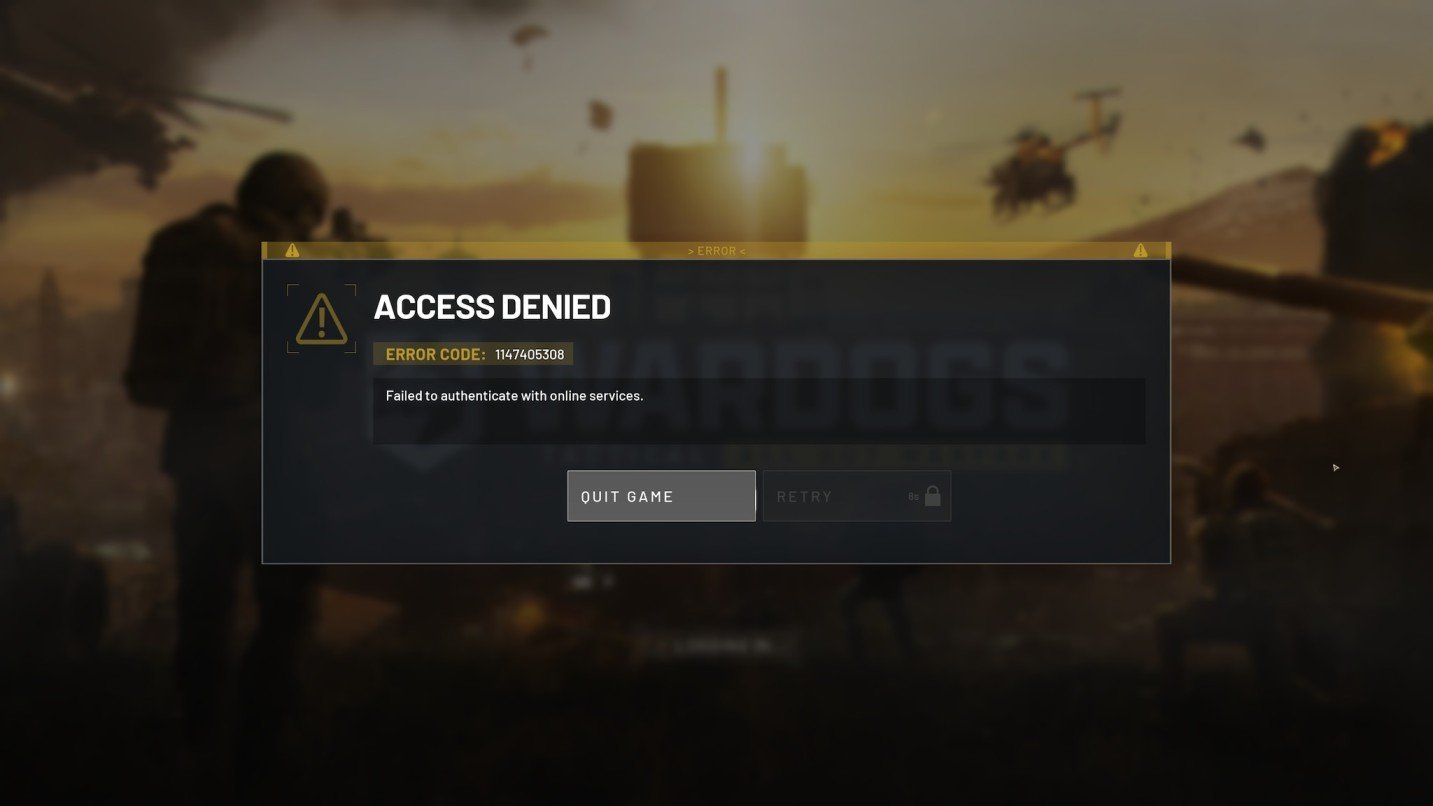
Launching WARDOGS should bring adrenaline-fueled firefights, not an access denied roadblock. Still, players everywhere are hitting Error 1147405308 – Failed to authenticate with online services right after startup, cutting into the action before it begins.
This isn’t an isolated mishap; with WARDOGS freshly released, connectivity hiccups have been common. The developers are actively releasing patches, but for now, many players find themselves locked out of the online experience.
Fortunately, there are practical steps to regain access despite this error. The heart of the problem usually lies in how Windows handles proxy settings for online connections.
By resetting Windows’ WinHTTP proxy configuration, which often gets stuck on a misconfigured or obstructive proxy, you can restore the game’s ability to authenticate with its online servers. You can do this automatically with a helpful tool or via manual commands in the terminal.
How to Fix WARDOGS Error 1147405308
An easy and efficient solution comes from a community-shared batch file named WARDOGS_Auth_Fix_Tool.bat . Running this utility as an administrator resets your proxy settings and tackles common authentication barriers in one sweep.
Since this is a third-party tool, it’s understandable if you’d prefer not to download it. In that case, the manual fix below will take you through the same proxy resetting process step-by-step.
The fix tool is hosted on Google Drive for easy access.
After downloading, unzip the folder to access the batch file.
Follow these instructions:
- Locate the WARDOGS_Auth_Fix_Tool.bat file.
- Right-click and choose Run as administrator.
- Allow it to complete its scan and fixes.
- Completely exit Steam, including tray and background processes.
- Reopen Steam and launch WARDOGS.
This tool not only resets the WinHTTP proxy but also clears the DNS cache and runs a check on WARDOGS and Epic Online Services connections, generating a report on your desktop for troubleshooting.
Reset Proxy Settings Manually
For those who prefer direct control, manually resetting your proxy via Windows Terminal is straightforward.
Press Win + X and select Terminal (Administrator) to open a command window with the necessary privileges.
Type the following and press Enter:
netsh winhttp show proxy
This will display your current WinHTTP proxy configuration.
If you see something like this:
Proxy Server(s): 127.0.0.1:10801
Run the reset command:
netsh winhttp reset proxy
After that, verify the reset by rerunning the show proxy command:
netsh winhttp show proxy
You should now see:
Direct access (no proxy server)
Finally, close and restart Steam, then try launching WARDOGS again.
Troubleshooting Persistent Connection Issues
Resetting the WinHTTP proxy often fixes this error, but if the problem persists, other network factors may be at play. Proxy settings elsewhere in Windows could be active, or specialized network tools like Zapret might interfere with connections.
For some, using a VPN bypasses restrictions that prevent WARDOGS from authenticating. Verify that no other proxies are enabled in your system network settings and disable them if necessary. Then restart the game and Steam to test again.
What Players Are Saying
So, if your WinHTTP result already shows:
Direct access (no proxy server)
and WARDOGS still cannot authenticate, the proxy may not be the cause.
Check whether you have a proxy enabled elsewhere in your Windows network settings and disable it if you do. Then restart Steam and test the game again.
Community feedback indicates that many players who struggled for extended periods found success after resetting their proxy settings. Some resolved issues by fully disabling network proxies, while others still required VPNs despite a clean proxy report. This underscores the complexity of connection issues in early releases like WARDOGS.
Many players in the discussion said the proxy reset fixed the error after they had been trying to solve it for hours or even days.
One player also reported that manually turning off and removing the proxy from the network settings helped for him. Another player using Zapret said the automatic tool showed Direct access (no proxy server), but they were still unable to connect.