- Where to Find Costume Sets in ATLYSS
- Main Quest Walkthrough
- Loot Drops from Enemies
- Catacomb Secret Rooms
- How to Get to the East Wing in Crescent Keep
- Builds
- Guide
- All Costumes & Cosmetics
- Changing class is not something you can do directly inside ATLYSS during gameplay, but you do have the option to unlearn any skills you’ve acquired, giving you partial control over your build and playstyle.
- Removing Skills
- Changing your character’s class is a more involved process requiring manual editing of your save files to reset your class and related progress.
ATLYSS offers a distinctive experience where managing your character’s skills and class can redefine your gameplay. While the game allows skill unlearning within the interface, changing your character’s class demands a deeper dive into the save data. Understanding how to navigate this process is vital for players seeking flexibility without starting over completely.

Where to Find Costume Sets in ATLYSS
Main Quest Walkthrough
Loot Drops from Enemies

Catacomb Secret Rooms
How to Get to the East Wing in Crescent Keep
Builds
Guide

All Costumes & Cosmetics
Changing class is not something you can do directly inside ATLYSS during gameplay, but you do have the option to unlearn any skills you’ve acquired, giving you partial control over your build and playstyle.
To remove a skill, simply launch the game and open the skills tab on the character of your choice. Right-click on the skill icon you wish to forget, and confirm to drop it. This action removes the skill immediately and returns any associated quests back to their original vendors, effectively rolling back your progress related to that skill.
Removing Skills
To start, simply load into the game on whatever character you wish to remove skills from. From there, open the skills tab however you see fit.
Now, simply right click on the icon of the skill you want to remove from your learnt skills, and you’ll be given the option to drop them.
The skill will then be forgotten, and any related quests will be returned to their vendors.

Changing your character’s class is a more involved process requiring manual editing of your save files to reset your class and related progress.
Before attempting any modifications, acquire and use a Tome of Unlearning inside the game to safeguard your current skill layout. This step ensures you can revert if needed.
This is just in case, but it’s better to be safe.
Once you have backed up your character, fully exit ATLYSS. Navigate to your game installation folder via your Steam library by right-clicking the game and selecting ‘Properties’ then ‘Local Files’. Inside, locate the folder path: ATLYSS_Data > profileCollections.
And now to find your characters, go to ATLYSS_Data > profileCollections
Within the profileCollections folder, you’ll find multiple files named in the format atl_characterProfile_x, where “x” corresponds to the character slot number starting at zero. Identify the file matching the character whose class you wish to change.
What we’re looking for in here are the files named: “atl_characterProfile_x” where “x” is the profile slot this character is associated with, starting at 0. So the first character you have made in game is “atl_characterProfile_0” and then the second is “atl_characterProfile_1” for example.
Make a backup copy of this file before proceeding. Editing save data carries risk, and a backup prevents irreversible loss if an error occurs.
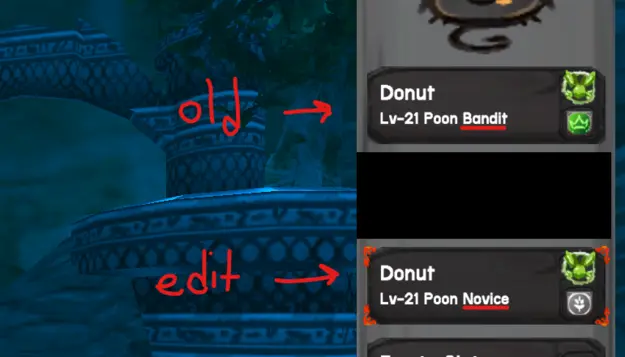
Open the profile file with a plain text editor such as Notepad. Search for the section where your class is declared. It will explicitly state the current class—for example, Bandit.
Once opened, you’re going to want to find the section that looks like this:
Instead of switching to a different class directly here, it’s recommended to clear this field entirely so the game can recognize that your character has no assigned class. Remove the class name so the entry is blank.

Simply clearing the class entry is not enough. You also need to remove the associated class quest to avoid data issues. Locate the list of completed quests within the save file.
This quest list contains all your completed objectives, including your class-related quest. For example, the Bandit’s related quest is named Devious Pact. To properly reset your class, you must delete this quest from the list.
We’re going to have to remove the quest associated with our class. It will vary from class to class just what exactly the name of the quest was, but for Bandit the quest’s name is “Devious Pact,” and we’re going to have to remove it completely from the list of quests.
Ensure the quest name is fully removed from the data—no residual commas or brackets—to maintain the file’s integrity.
After saving your edited profile with the same filename, replace the original file in the profileCollections folder with this new version. Your character’s class will now be reset, allowing you to accept the class selection quest anew when you next load the game.