


Captain Tsubasa 2: World Fighters often struggles with resolution detection on modern monitors, especially those exceeding 1080p. This is due to Windows DPI scaling interfering with the game’s ability to correctly identify the native display settings, causing distorted or improperly scaled visuals that can hamper gameplay and immersion.
If you encounter this resolution mismatch, you don’t need to switch monitors or reinstall the game. Instead, the fix lies in adjusting Windows display scaling or modifying the game’s compatibility settings to better handle DPI scaling. These approaches ensure the game runs crisply at your monitor’s intended resolution.
Between the two options, changing the High DPI settings so the game controls its own scaling is the smoother and more efficient solution. With this method, you configure once and enjoy the correct resolution every time you launch without further tweaks.
How to Fix Resolution Issues in Captain Tsubasa 2?
Method 1: Set Windows Scaling to 100%
The quickest way to resolve resolution issues is by adjusting your Windows display scaling setting. This forces Windows not to scale the display, letting the game render in its native resolution.
- Open Windows Settings.
- Navigate to System > Display.
- Locate the Scale option.
- Set the scaling to 100%.
- Restart Captain Tsubasa 2: World Fighters to apply the change.
This adjustment allows the game to properly detect your monitor’s resolution and display correctly. However, remember that changing Windows scaling affects all programs and might be inconvenient if you play on a high-DPI display regularly.
Since changing scaling back and forth can disrupt your workflow, many players prefer the more permanent second method.
Method 2: Change the High DPI Settings
By telling Windows to let the game manage its DPI scaling, you bypass the OS-level interference. This is a one-time setup that resolves resolution handling issues for good.
1. Find the game executable
First, access the folder where Captain Tsubasa 2 is installed on your PC.
The executable is typically located here:
Steam\steamapps\common\CaptainTsubasa2WF\CaptainTsubasa2WF\Binaries\Win64You can also get there quickly through Steam:
- Open Steam and navigate to your Library.
- Right-click Captain Tsubasa 2: World Fighters in your game list.
- Select Manage > Browse local files.
This will open the game’s directory in Windows File Explorer.
2. Enable High DPI Override
Within the folder, locate the main game executable:
CaptainTsubasa2WF-Win64-Shipping.exe
Then proceed with the following steps:
- Right-click the
.exefile and select Properties. - Open the Compatibility tab.
- Click on Change high DPI settings.
- Under High DPI scaling override, check the box for Override high DPI scaling behavior.
- Set the scaling performed by option to Application.
- Click OK, then Apply in the Properties window.
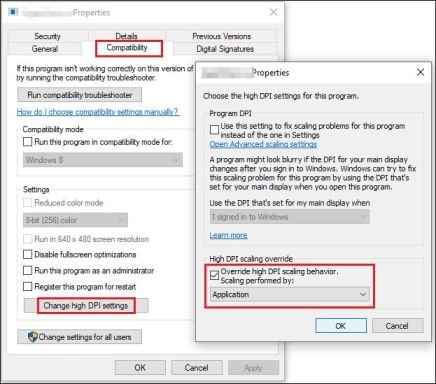
After applying these changes, start the game normally. You should now be able to pick your preferred resolution within the game’s settings menu, and it will display correctly even on high-resolution monitors.
This method is the most effective way to deal with DPI scaling issues in Captain Tsubasa 2: World Fighters, ensuring the game runs at your chosen resolution without requiring frequent display scaling adjustments.